
EJabberd_Integration_with_FreeIPA_using_LDAP_Group_memberships#
HOWTO: Configure eJabberd to authenticate IPA users using LDAP Group memberships.
Provided by Dale Macartney
This guide has been written to show how you can integrate ejabberd (XMPP Server) into FreeIPA using LDAP authentication, and to allow user’s based on being a member of an allowed Group.
Please note: This document works, however uses an unencrypted method of validating username and password data. As a result, this is a work in progress. If you wish to use this method in its current state, please do so at your own risk.
Passwords will be transmitted in CLEAR TEXT!, Please be aware of this.
The below details will walk you through how to add a Red Hat Enterprise Linux 6.2 system to an IPA domain, and then configure eJabberd to allow LDAP authentication with Group validation.
Details of this example are as follows
Domain name: example.com
IPA Server: ds01.example.com
Jabber Server: jabber01.example.com
IPA Client: workstation01.example.com
IPA User: testuser
Group Name = "jabber_users"
Bind account = "ejabberd"
Bind password = "secret123"
Create Bind account in FreeIPA#
Start by logging into your IPA server. If you did not log in as the admin user, optain a tgt for the admin user so we can add what we need to. To do this, run the following.
[root@ds01 ~]# kinit admin
Password for admin@EXAMPLE.COM:
You can verify your ticket with the following command.
[root@ds01 ~]# klist
Ticket cache: ``\ ```FILE:/tmp/krb5cc_0`` <FILE:/tmp/krb5cc_0>`__
Default principal: admin@EXAMPLE.COM
Valid starting     Expires            Service principal
06/13/12 23:28:48  06/14/12 23:28:45  krbtgt/EXAMPLE.COM@EXAMPLE.COM
Create a file with the following information. In this example, I created /root/jabber.ldif. Don’t forget to change the userPassword to something secure.
dn: uid=ejabberd,cn=sysaccounts,cn=etc,dc=example,dc=com
changetype: add
objectclass: account
objectclass: simplesecurityobject
uid: ejabberd
userPassword: secret123
passwordExpirationTime: 20380119031407Z
nsIdleTimeout: 0
Once you have saved your file, import the information into LDAP with the following command. Please note, you will need your Directory Manager password here.
[root@ds01 ~]# ldapmodify -h ds01.example.com -p 389 -x -D "cn=Directory Manager" -w redhat123 -f jabber.ldif
adding new entry "uid=ejabberd,cn=sysaccounts,cn=etc,dc=example,dc=com"
[root@ds01 ~]#
Create Group in FreeIPA#
Whilst you are still on the IPA server, add the group to be used for our jabber users.
[root@ds01 ~]# ipa group-add
Group name: jabber_users
Description: Group used to validate Jabber authentication to allowed users
- --------------------------
Added group "jabber_users"
- --------------------------
  Group name: jabber_users
  Description: Group used to validate Jabber authentication to allowed users
  GID: 1668600006
[root@ds01 ~]#
Enable EPEL repository#
As the the ejabberd package is not provided by Red Hat, you will need to configure yum to use the EPEL repostories,
To do this, run the following on your soon to be, jabber server.
[root@jabber02 ~]# rpm -Uvh ``\ ```http://mirror01.th.ifl.net/epel/5/i386/epel-release-5-4.noarch.rpm <http://mirror01.th.ifl.net/epel/5/i386/epel-release-5-4.noarch.rpm>`__
Install ejabberd package#
Install the ejabberd package by running the following
[root@jabber02 ~]# yum install -y ejabberd
Edit Configuration file to use TLS for communication between the Server and your Jabber clients#
Once installed, open /etc/ejabberd/ejabberd.cfg and change the following lines
Change the line
{hosts, ["localhost"]}.
so it reads as follows
{hosts, ["example.com"]}.
Change the line
%%{certfile, "/etc/ejabberd/ejabberd.pem"}, starttls,
so it reads as follows
{certfile, "/etc/ejabberd/ejabberd.pem"}, starttls,
Change the line
%%{s2s_use_starttls, optional}.
so it reads as follows
{s2s_use_starttls, optional}.
Change the line
%%{s2s_certfile, "/etc/ejabberd/ejabberd.pem"}.
so it reads as follows
{s2s_certfile, "/etc/ejabberd/ejabberd.pem"}.
Make sure you save your configuration file.
Edit Configuration file to enable LDAP authentication and Group validation#
Open /etc/ejabberd/ejabberd.cfg and add the following lines in the Authentication section. Don’t forget to change the password to the one you used earlier for your BIND account.
{auth_method, ldap}.
{ldap_servers, ["ds01.example.com"]}.
{ldap_uids, [{"uid"}]}.
{ldap_filter, "(memberOf=cn=jabber_users,cn=groups,cn=accounts,dc=example,dc=com)"}.
{ldap_base, "dc=example,dc=com"}.
{ldap_rootdn, "uid=ejabberd,cn=sysaccounts,cn=etc,dc=example,dc=com"}.
{ldap_password, "secret123"}.
Save the config file once you have finished and restart ejabberd
[root@jabber02 ~]# service ejabberd start
Starting ejabberd:                                         [  OK  ]
Verify that your service has started correctly after your changes.
[root@jabber02 ~]# service ejabberd status
The node ejabberd@jabber02 is started with status: started
ejabberd 2.1.11 is running in that node
[root@jabber02 ~]#
Open TCP ports on local Server#
Now we need to open our firewall for a few ports for jabber to work with our clients.
[root@jabber02 ~]# for x in 5269 5222 5223 5280 ; do iptables -I INPUT -p tcp --dport $x -j ACCEPT ; done
[root@jabber02 ~]# service iptables save
iptables: Saving firewall rules to /etc/sysconfig/iptables:[  OK  ]
[root@jabber02 ~]#
Configure XMPP Client on a Workstation#
Next we need to configure our jabber client. For the purpose of this exercise, I have used pidgin, which is also available via the EPEL repository.
Open Pidgin on your workstation. If this is the first time you have launched Pidgin, it will prompt you to add an account.
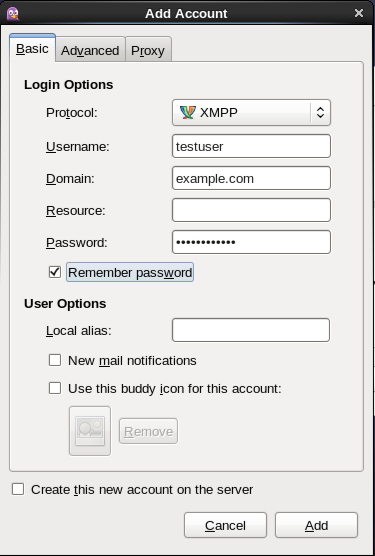
Select XMPP and add your username, domain and password.
See the below picture for comparison.
Add_Account.png#
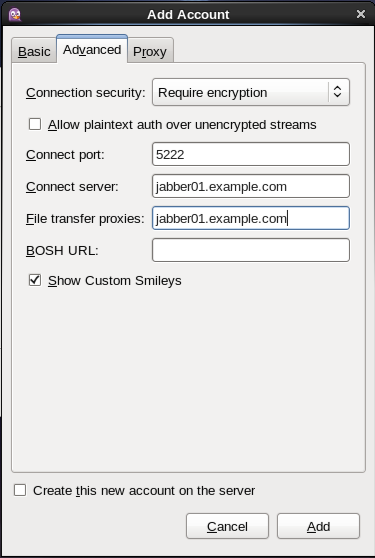
Once you have added your user credentials, click Advanced and enter your jabber server name. (Please note, I took this screenshot whilst testing another server, I will replace this screenshot shortly).
See the below picture for comparison.
Add_Account_-_Server_Settings.png#
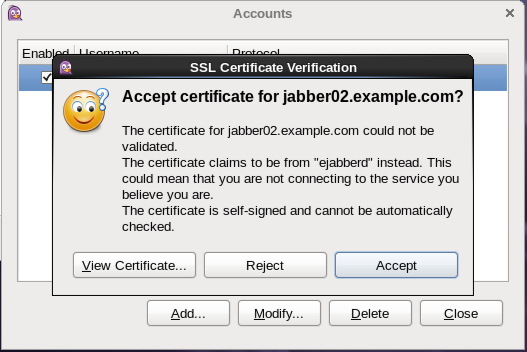
Once you have finished, click the add button. If you enable the account, it will attempt to connect and ask you to accept the SSL certificate that we enabled earlier.
See the below picture for comparison.
SSL_Certificate.png#
Once you have accepted the certificate, you will see that your login attempt failed. This is because we have not added any users to the “jabber_users” group yet.
Add user(s) to the “jabber_users” group#
If you tail the logs of the jabber server as follows, you will see the failed authentication attempt in the above step.
[root@jabber02 ~]# tail -f /var/log/ejabberd/ejabberd.log
=INFO REPORT==== 2012-06-14 00:03:30 ===
I(<0.376.0>:ejabberd_listener:281) : (#Port<0.4119>) Accepted connection  {{10,0,1,101},60643} -> {{10,0,1,32},5222}
=INFO REPORT==== 2012-06-14 00:03:30 ===
I(<0.380.0>:ejabberd_c2s:657) : ({socket_state,tls,  {tlssock,#Port<0.4119>,#Port<0.4141>},<0.379.0>}) Failed authentication for testuser@example.com
Leave the tailing log running and switch back to your IPA server and add your test user.
You can do this by doing the following.
[root@ds01 ~]# ipa group-add-member
Group name: jabber_users
[member user]: testuser
[member group]:
  Group name: jabber_users
  Description: Group used to validate Jabber authentication to allowed users
  GID: 1668600006
  Member users: testuser
- -------------------------
Number of members added 1
- -------------------------
[root@ds01 ~]#
Jump back to your workstation and click the reconnect button. You should see that your client has now logged in, and the following will appear in the tailing logs on the jabber server.
=INFO REPORT==== 2012-06-14 00:08:35 ===
I(<0.376.0>:ejabberd_listener:281) : (#Port<0.4159>) Accepted connection {{10,0,1,101},60644} -> {{10,0,1,32},5222}
=INFO REPORT==== 2012-06-14 00:08:35 ===
I(<0.393.0>:ejabberd_c2s:639) : ({socket_state,tls, {tlssock,#Port<0.4159>,#Port<0.4161>},<0.392.0>}) Accepted authentication for testuser by ejabberd_auth_ldap
=INFO REPORT==== 2012-06-14 00:08:36 ===
I(<0.393.0>:ejabberd_c2s:946) : ({socket_state,tls,{tlssock,#Port<0.4159>,#Port<0.4161>},<0.392.0>}) Opened session for testuser@example.com/91030605413396289162377
Thats all folks, your jabber server is now finished and validating your “jabber_users” Group.